Friends Disco Dance Video AI Tutorial 2026: The Friends Disco Dance Video AI trend is a creative way to turn regular photographs into entertaining dance videos with the help of artificial intelligence. This popular editing idea combines retro disco vibes, colorful party lights, stylish outfits, and exciting dance movements to create eye-catching social media content.
With an AI dance video generator, you can animate your own photo or create a fun dance scene featuring multiple friends. You do not need advanced editing skills or professional animation software to get started. Most of the process involves uploading reference images, writing a suitable AI prompt, generating the video, and making a few final adjustments.
These AI-generated dance clips are suitable for Instagram Reels, YouTube Shorts, Facebook Reels, and other short-video platforms. In this tutorial, you will learn how to create an AI disco dance video, use a ready-made prompt, improve animation quality, and edit the final result for social media.
How to Create a Friends Disco Dance Video Using AI
Making a disco dance video with AI is straightforward when you follow the correct steps. Before starting, prepare clear photographs of the people you want to include in the video. Images with visible faces, good lighting, and clearly defined bodies can help the AI produce more consistent results.
Follow these steps to create your own AI Friends Disco Dance Video.
- Choose your reference photos: Select clear images of yourself and your friends. Make sure the faces and clothing are visible.
- Open an AI video generator: Choose a tool that supports image-to-video animation, reference images, or character replacement.
- Upload the required images: Add your reference photos and, if supported, the original dance video you want to recreate.
- Enter an AI dance prompt: Describe the disco atmosphere, dance movements, lighting, outfits, and visual style you want.
- Generate the video: Start the generation process and wait for the AI tool to create the animated clip.
- Review the result: Check the faces, hands, body movements, clothing, and background for visual errors.
- Edit and export: Use CapCut or another video editor to add music, synchronize the beats, adjust colors, and export the final video.
The available features and results depend on the AI tool you use. Some tools can animate a single photograph, while others support multiple characters or video-based editing.
Friends Disco Dance Video AI Prompt
A detailed prompt helps an AI video generator understand the type of dance scene you want to create. Instead of giving only a general instruction, explain the characters, movements, setting, camera style, and video format.
You can copy and customize the following Friends Disco Dance AI Prompt.
Ready-to-Copy Video Replacement Prompt
Replace the characters in the original dance video with the people shown in the uploaded reference images. Replace Character 1 with the person from Reference Image 1, Character 2 with the person from Reference Image 2, and Character 3 with the person from Reference Image 3.
Preserve each person’s recognizable identity, facial features, skin tone, hairstyle, body proportions, and overall appearance according to their respective reference image. Reproduce the clothing shown in each reference image as closely as the tool allows, including colors, fabric details, accessories, and garment style.
Keep the original dance choreography, gestures, facial expressions, timing, camera angles, lighting, and background consistent with the source video wherever the tool supports it. Focus the transformation on the characters’ identities and outfits without intentionally changing the scene composition or dance sequence.
Avoid distorted faces, inconsistent clothing, unnatural limbs, flickering, duplicated body parts, and sudden changes in appearance. Remove existing text, subtitles, watermarks, logos, and graphic overlays where permitted by the tool and where you have the right to edit the source material.
Create a clean, high-quality video with smooth motion and consistent character details. Use a vertical 9:16 aspect ratio for Instagram Reels and YouTube Shorts when supported.
Important: Exact character replacement and perfect motion preservation are not guaranteed. Results depend on the source video, reference images, and features available in your chosen AI tool.
Best Prompt for a Retro Friends Disco Dance Video
If you want to create a completely new disco dance scene rather than replace characters in an existing video, try this alternative prompt.
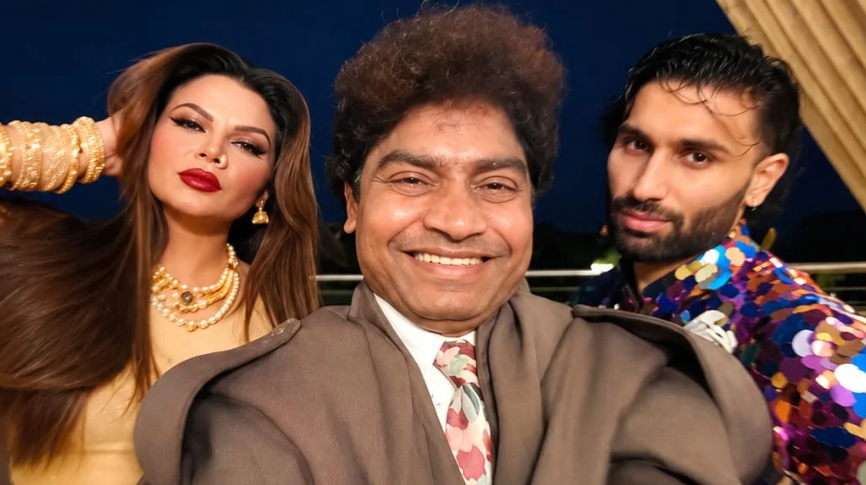
AI Disco Dance Generation Prompt:
Swap the characters in the original video with the reference persons from the provided images. Replace Character 1 with the person from Image 1, Character 2 with the person from Image 2, and Character 3 with the person from Image 3.

Each character's face, body, skin tone, facial features, hair, and overall physical appearance must be an exact 1:1 match to their respective reference images - do not alter, modify, or reinterpret any physical trait. The identity of each person must be preserved with complete accuracy as shown in the reference images.

Replace the outfits of each character entirely with the clothing shown in their respective reference images. Preserve every detail of the outfit including fabric texture, color, cut, styling, accessories, and garment fit exactly as seen in the reference images. The original video's costumes must be completely replaced.

Preserve all facial expressions, body movements, gestures, poses, camera angles, lighting, and background exactly as they appear in the original video. Only the faces, physical identity, and outfits of the characters should change. Everything else motion, timing, scene composition, and environment - must remain 100% identical to the source video.

Remove all text, watermarks, logos, subtitles, and overlays present in the original video. The final output must be completely clean with no text or graphics visible anywhere in the frame.
Tips for Creating Better AI Friends Dance Videos
The quality of your reference images and instructions can make a noticeable difference in the final video. Keep these tips in mind when creating an AI dance edit.
- Use clear photographs: Sharp images with good lighting make it easier to preserve recognizable facial details.
- Choose simple dance movements: Basic synchronized steps often produce more consistent results than complicated choreography.
- Describe the background: Mention disco lights, a dance floor, a party setting, and other visual elements you want to include.
- Keep character details consistent: Clearly identify each person when using multiple reference images.
- Generate short clips first: Test a short animation before attempting a longer dance sequence.
- Review the final result: Check facial consistency, hands, legs, clothing, and background movement before publishing.
- Try different versions: If your AI tool allows multiple generations, compare the results and select the most natural-looking clip.
These techniques can help improve your AI Dance Video Editing workflow, although every generation may produce slightly different results.
How to Edit an AI Disco Dance Video for Instagram Reels
After generating your video, the next step is to prepare it for social media. You can use CapCut or another compatible video editor to improve the timing, sound, and overall presentation.
First, import the generated clip and set the project to a vertical 9:16 format. Trim unnecessary sections and choose a suitable disco soundtrack or another audio track that matches the dance movements.
You can then add beat synchronization, subtle zoom effects, smooth transitions, and balanced color adjustments. If the video contains several short scenes, arrange them in a sequence that feels natural and keeps the dance flowing.
Avoid excessive filters and transitions because they may distract viewers from the main performance. Before exporting, watch the entire video to check the audio timing, visual glitches, and scene changes.
For the best viewing experience, export at a resolution supported by your editing tool and social media platform. Make sure you have the necessary rights to use the music and any source footage included in your edit.
Common Mistakes to Avoid in AI Disco Dance Video Editing
Beginners sometimes expect an AI generator to reproduce every detail perfectly on the first attempt. However, facial features, clothing, hands, and body movements can change during animation, especially in crowded scenes or fast dance sequences.
Another common problem is writing a prompt without enough detail. If you do not explain the desired movements or environment, the AI may create an unrelated dance style or background.
Using low-resolution photographs, including too many characters, and requesting several complicated actions in a short clip can also affect the results. Start with a simple idea, test the animation, and gradually add more creative details.
Finally, obtain permission before using other people’s photographs or creating videos featuring them, particularly when you plan to publish the results publicly. Follow the AI platform’s usage rules and avoid presenting a fictional or AI-generated scene as genuine footage.
Conclusion
The Friends Disco Dance Video AI trend offers an entertaining way to experiment with digital animation and retro dance styles. With clear reference images, a well-written prompt, and a few editing adjustments, you can create an engaging video for Instagram Reels and YouTube Shorts without needing advanced animation skills.
Start with a simple dance scene, check the generated movements carefully, and refine the result with suitable music and smooth transitions. As you become more familiar with AI video tools, you can experiment with different characters, party settings, and disco-inspired effects to develop your own creative editing style.
Frequently Asked Questions (FAQs)
1. What is a Friends Disco Dance Video AI?
A Friends Disco Dance Video AI is an AI-generated or AI-edited dance clip that features friends performing disco-inspired movements. It may use photographs, reference images, or existing video footage to create the final result.
2. How can I make a disco dance video using AI?
Choose an AI video generator, upload your reference image or source footage, enter a detailed dance prompt, and generate the clip. You can then edit the video using CapCut or another compatible editor.
3. Can I create an AI dance video with multiple friends?
Yes, some AI video tools support multiple characters or reference images. The quality depends on the number of people, image clarity, and the features offered by the tool.
4. Which prompt is best for an AI disco dance video?
A useful prompt describes the characters, dance movements, retro nightclub setting, colorful lights, camera motion, and desired video format. Include instructions to maintain consistent facial features and natural body movements.
5. Can I use an AI disco dance video on Instagram Reels?
Yes, you can prepare an AI dance video for Instagram Reels by exporting it in a suitable vertical format. Check Instagram’s current content and music requirements before publishing.
6. Why does my AI dance video have face or body errors?
AI-generated videos may contain inconsistent facial details, unnatural hands, distorted limbs, or changes in clothing. Clear reference images, simpler movements, and repeated generations may help reduce these issues.
7. Is it possible to create an AI dance video for free?
Some AI video platforms provide free credits or limited generation options, while others require a subscription. Check the current pricing, generation limits, and export restrictions before choosing a tool.